Isometric Drawing Tool
Chengdu Bopood Technology Co., Ltd.
September 2026, Chengdu
I. Software Installation
The Isometric Drawing Enhancement Tool is installed together with the 【Plugin Manager】. Run the 【Plugin Manager】 installer and install it under the PDMS installation path as prompted.
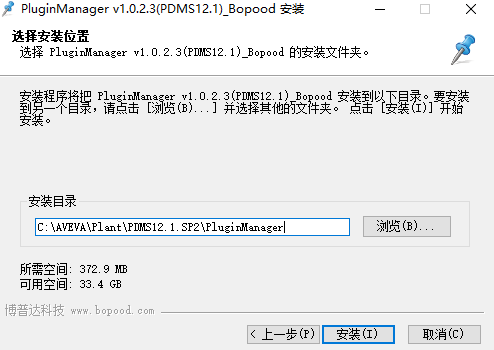
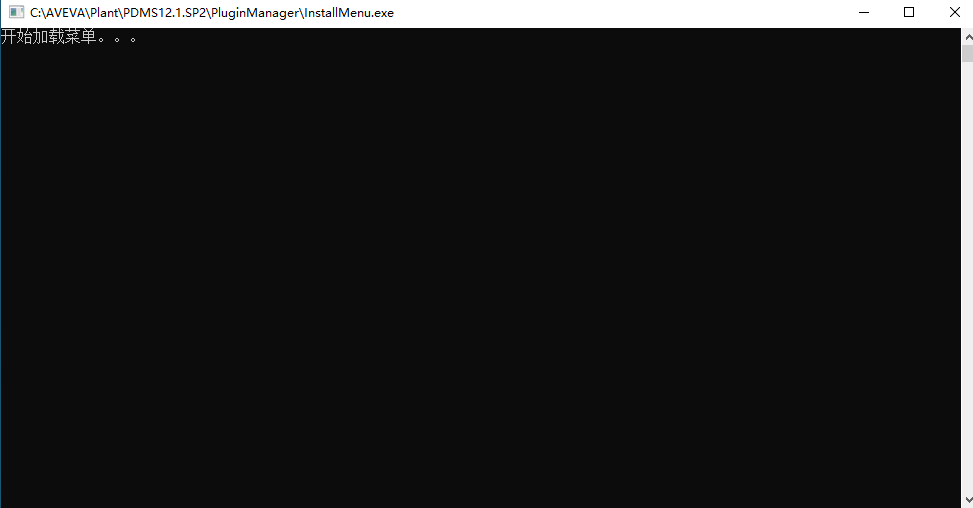
Note: As shown in the figure, the installation directory must end with the PluginManager folder; do not install directly under the PDMS root directory. After installation, a command window opens and the program loads its menus. The program then exits automatically when loading is complete; do not close it manually in the meantime.
II. License Loading and Configuration Management
Start the Plugin Manager
Click the 【Bopood Plugin Manager】 toolbar in the PDMS menu bar to start the software

Click the 【Isometric Drawing Enhancement Tool】 icon to open the interface
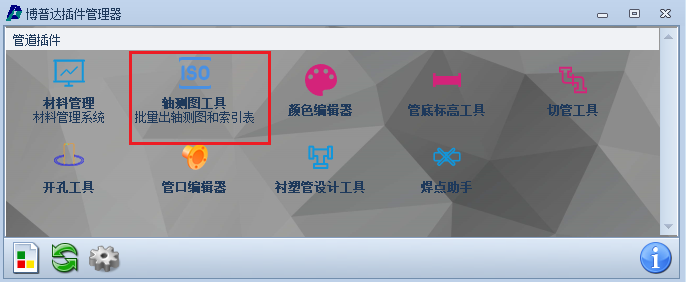
Click the exclamation mark icon in the lower right corner of 【Isometric Drawing Enhancement Tool】
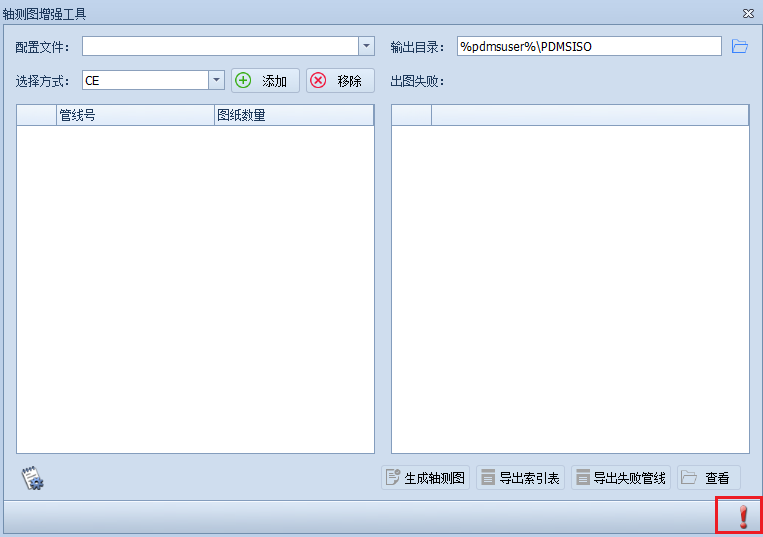
2.1 Floating License
Floating licensing requires one computer to act as the server (with a stable network). Computers on the same LAN connect to the server to obtain a license.
- Install the License Manager
Install FloatingLicenseManagementService on the server computer first. See the "New License Manager Installation Guide" for instructions.
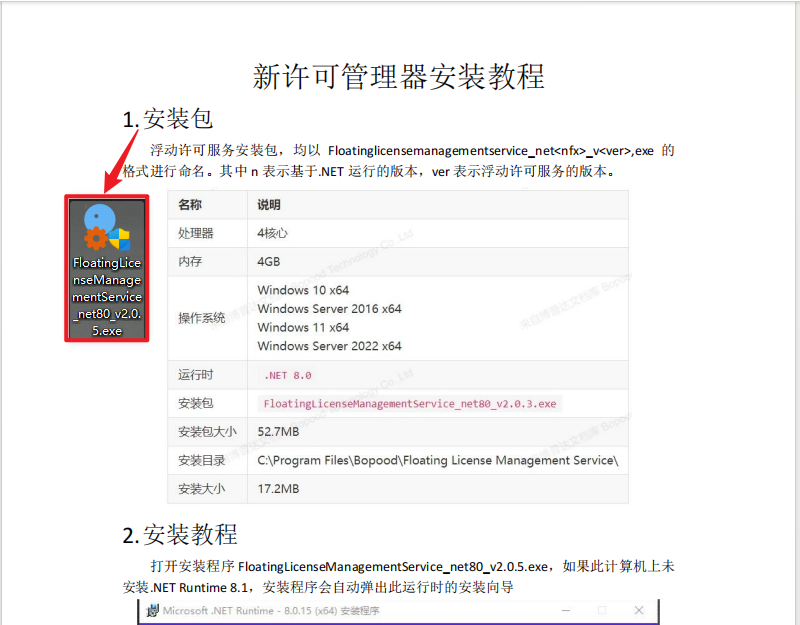
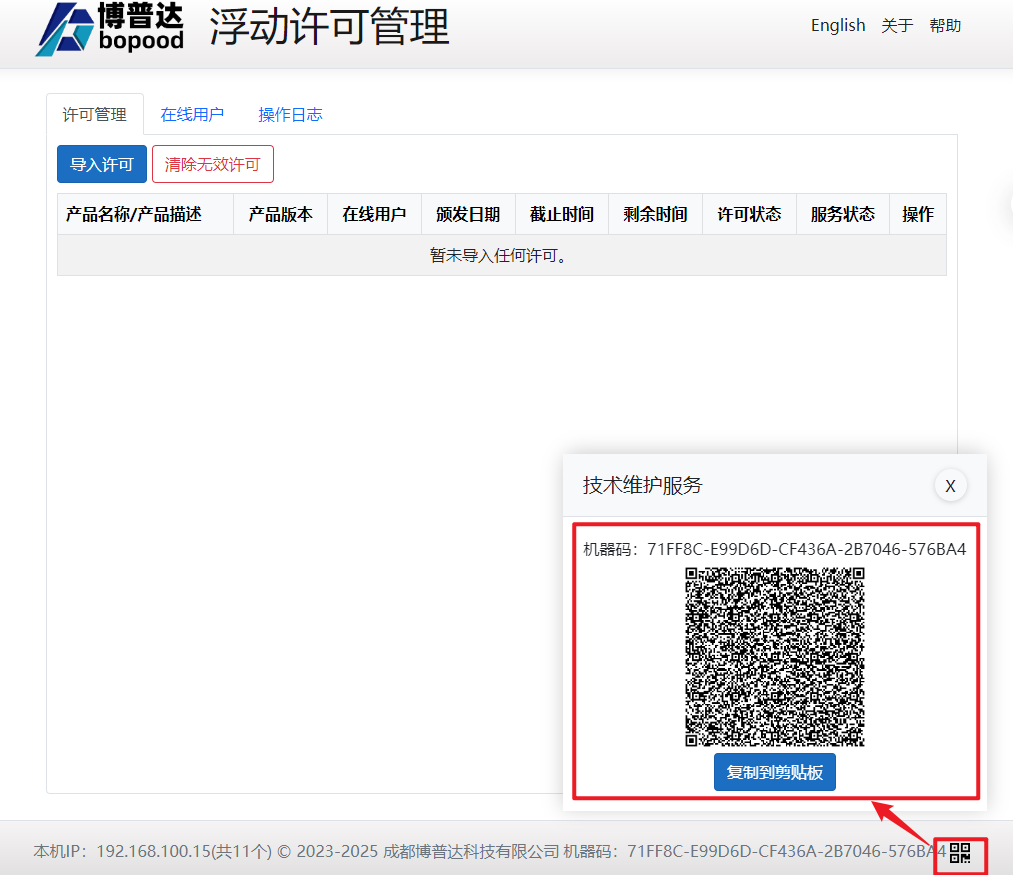
- Obtain the machine code and IP information
After installation, double-click the icon to open the license management interface, scan the QR code shown there, and send the scanned content to technical support to obtain a license.
- Read the License
Server:
Directly import one license file with the .server.flic extension and enable the service
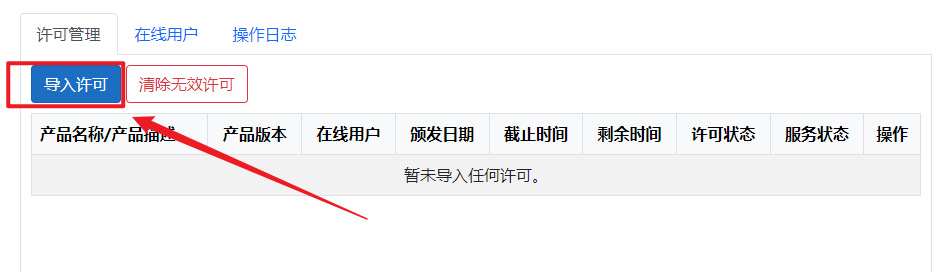
Client:
Add the Isometric Drawing Enhancement Tool floating license and set it to enabled.
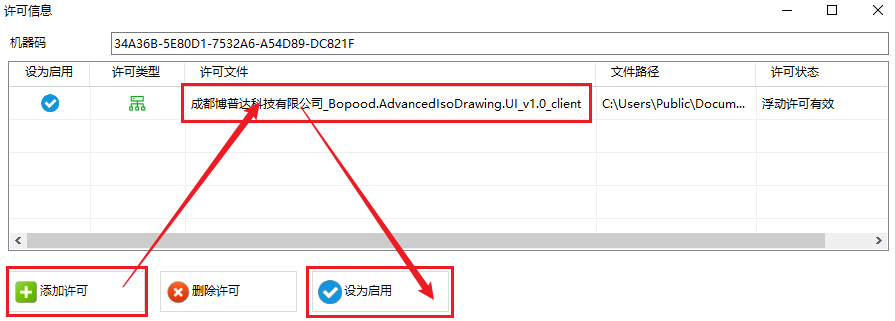
2.2 Standalone License
- Obtain the Machine Code
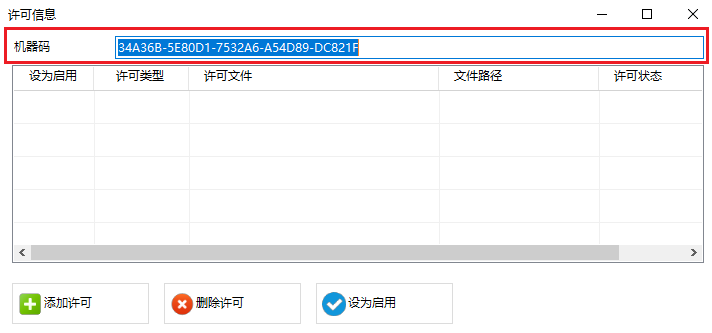
Copy the machine code and send it to Bopood technical support to obtain a license (skip this step if you already have a license)
- Read the License
Add the Isometric Drawing Enhancement Tool standalone license and set it to enabled. The procedure is the same as reading a license on the floating license client; the license just needs to show as valid.
1. Select a Configuration File
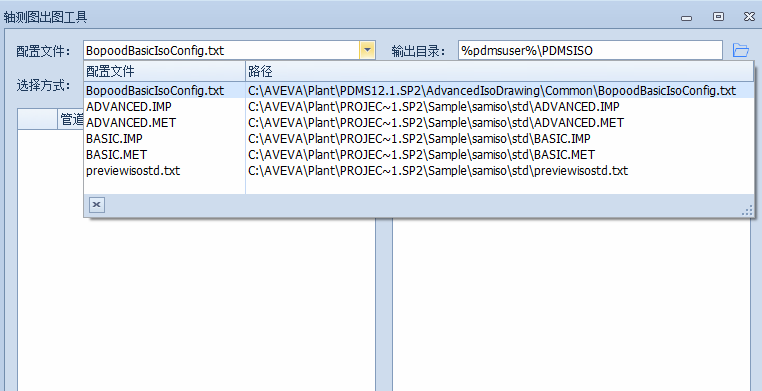
Note: the configuration file must produce correct drawings. This software only calls it and makes no changes to it
2. Add Pipes
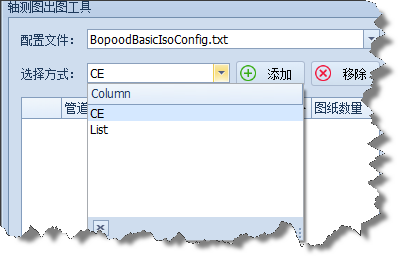
Two selection methods are available:
- 【CE】: adds the pipes under the level selected in the current PDMS tree
- 【List】: define a list with the List function in PDMS, then use this button to add the pipes in that List to the list
Select the Output Directory
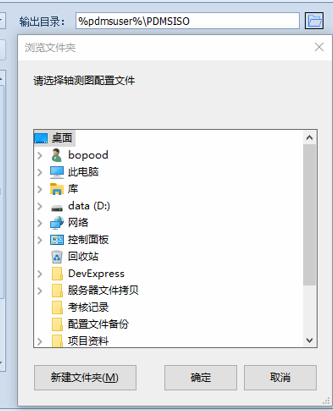
Click the button and select a folder in the dialog box as the storage path for the generated isometric drawings. You can also enter a relative path that PML recognizes, as shown in the figure above
Index Table Settings
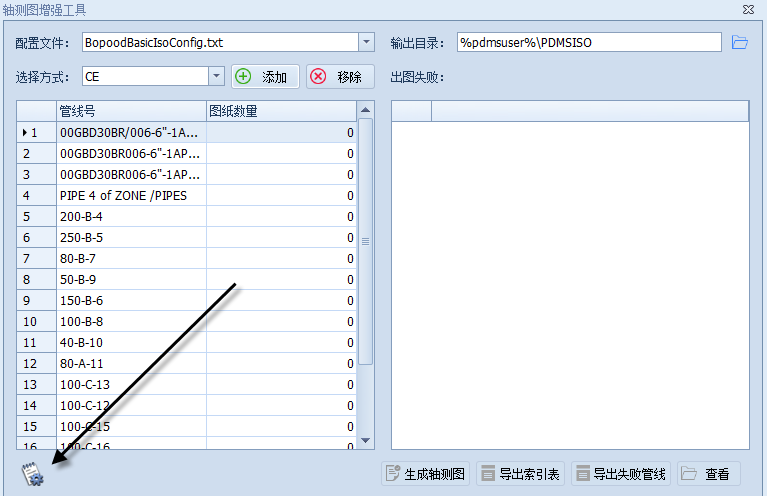
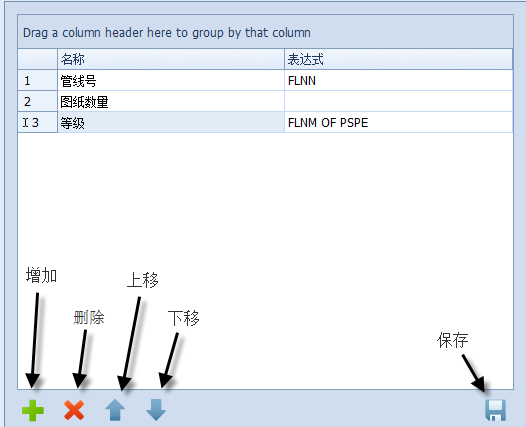
Click the index table settings icon and edit the index table headers in the dialog box. You can add headers, delete headers and change their order; click Save when done.
Generate Isometric Drawings
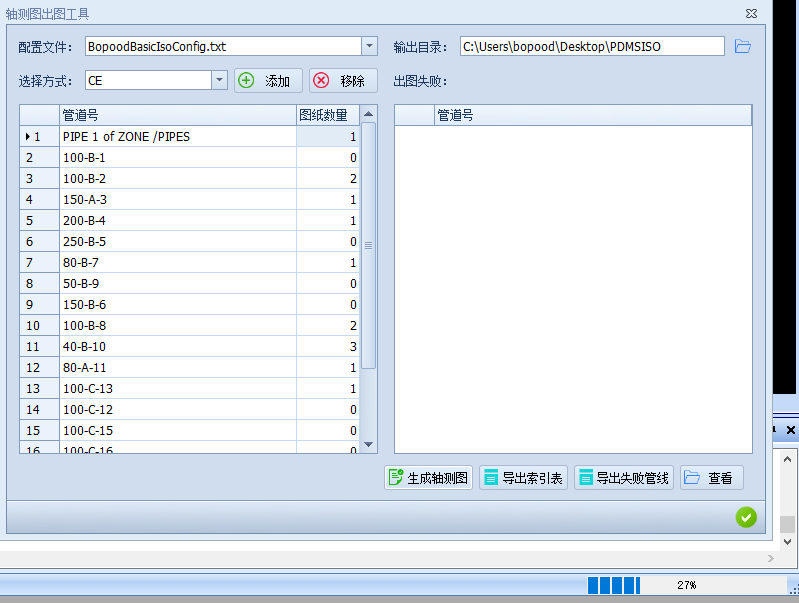
Click 【Generate Isometric Drawings】 and follow the drawing progress in the lower right corner
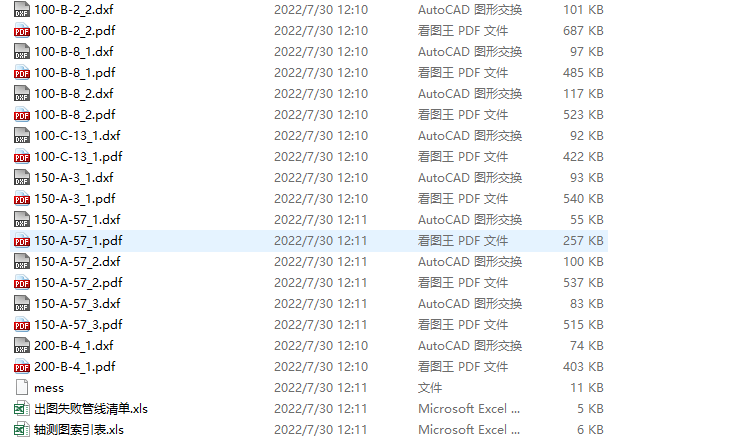
Drawing complete: when generation finishes, check the failed drawing list for pipelines that could not be drawn; double-click a pipeline number to locate it in the PDMS tree
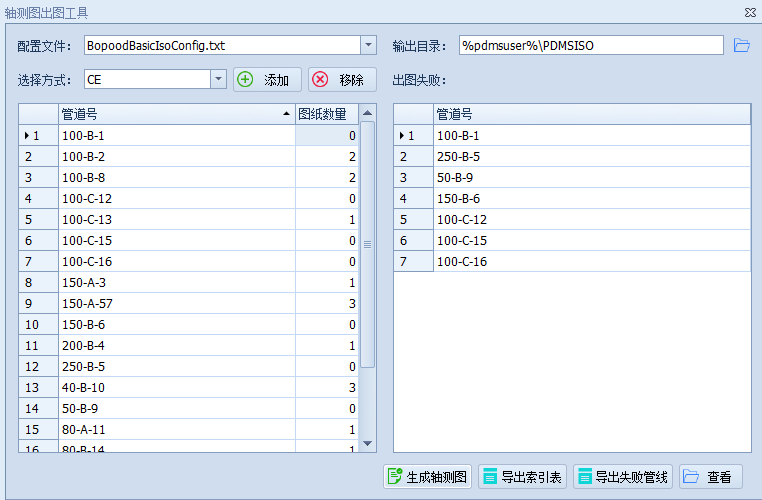
Click 【Export Index Table】 to generate the isometric drawing index table in the output directory
Click 【Export Failed Pipelines】 to generate the failed pipeline list in the output directory
Click 【View】 to open the output directory
File Display