Plugin Manager
Chengdu Bopood Technology Co., Ltd.
July 2022, Chengdu
I. Software Installation
Run the 【Plugin Manager】 installer and install it under the PDMS installation path as prompted.
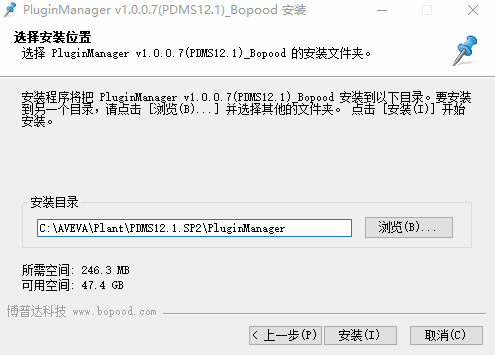
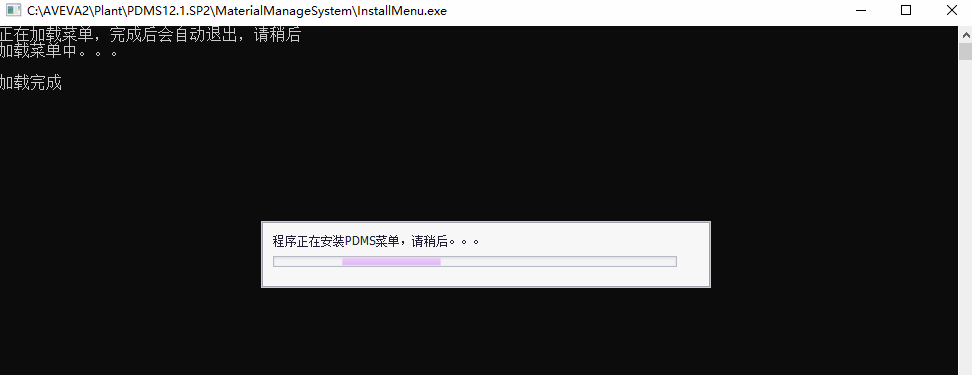
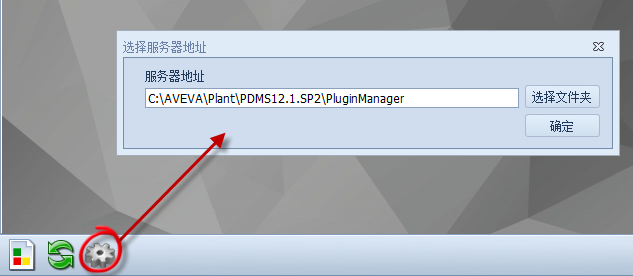
Note: As shown in the figure, the installation directory must end with the PluginManager folder; do not install directly under the PDMS root directory. After installation, a command window opens and the program loads its menus. The program then exits automatically when loading is complete; do not close it manually in the meantime.
Set the Server Address
Purpose of the server address: when the local Plugin Manager or its plug-ins differ in version from those on the server, the user is prompted to update. This means that when the Plugin Manager or a plug-in is updated, it only needs to be reinstalled on the server; other users update through the built-in update feature of the 【Plugin Manager】 without installing again.
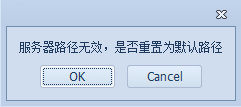
The first time 【Plugin Manager】 is opened after installation, no server address has been set, so the prompt box shown below appears. In later use, the same box reminds the user if the server address becomes invalid. Click OK to reset it to the 【Plugin Manager】 installation directory.
Click Settings to set the server path in the window that opens. Contact the administrator to confirm where the Plugin Manager is installed on the server.
Update Plug-ins
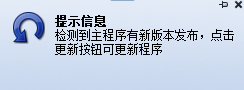
When the 【Update】 button flashes and an update prompt appears in the lower right corner, click 【Update】 to update.
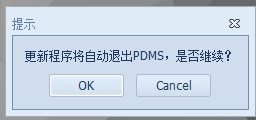
The update exits PDMS to release the program files in use, so save your work beforehand.
Run Plug-ins
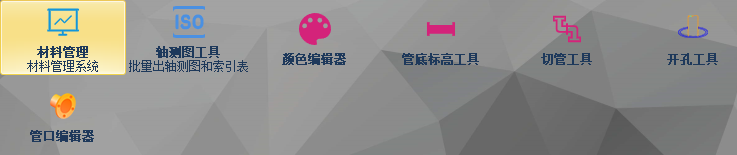
Click the plug-in icon to run it
III. Plug-in Management (Administrator)
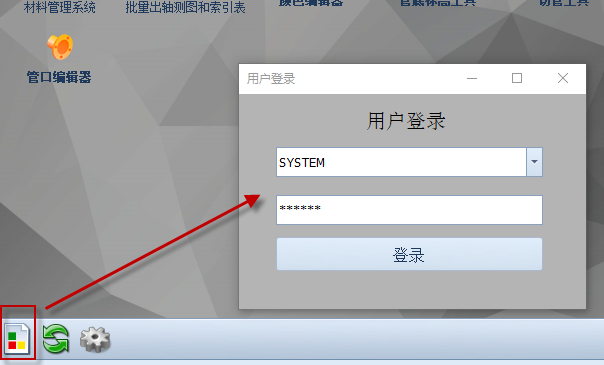
1. Log in to the administrator account
The 【Plugin Manager】 administrator account is separate from the 【PDMS】 administrator account and must be set by the administrator. The default administrator account is SYSTEM, password XXXXXX.
Right-click 【Custom Sort】 on the results page to edit the column sorting rules for that configuration.
Adjust the sorting rules with Move Up, Move Down and order selection, then click 【Save】. The change takes effect at the next statistics run.
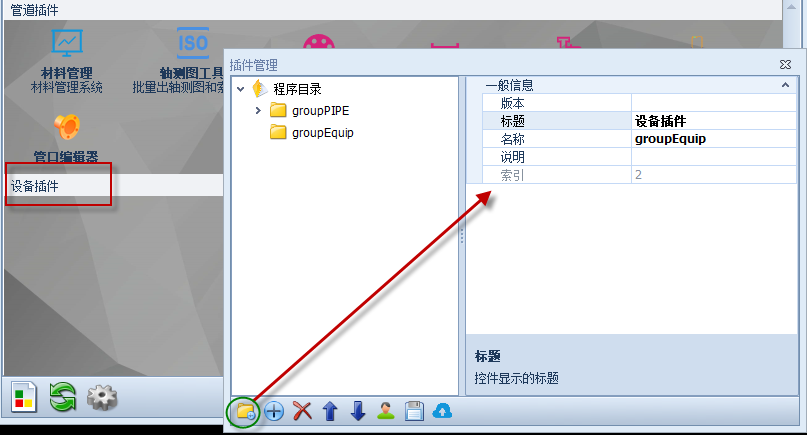
2.1 Add a Directory
Click 【Add Directory】 to add a group and fill in the data
Click 【Add Button】 to add a button and fill in the data. The 【Image】 is 32x32 and the 【Hover Image】 is 64x64. Note: each plug-in corresponds to one button.
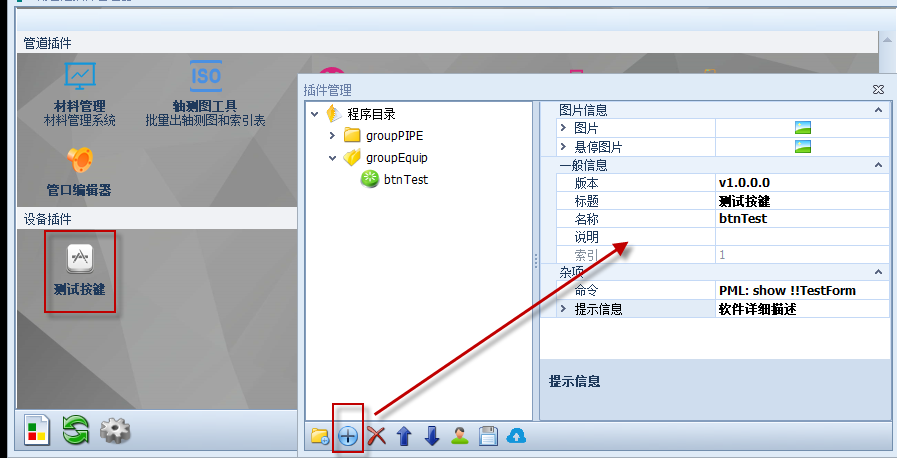
Program locations:
PML programs: stored under PluginManager\Plugins\PML\UserTools in the installation path.
DOTNET programs: stored under PluginManager\Plugins\DOTNET in the installation path; add the startup entry in the PluginIndex file in this directory.
2.3 Delete
Click 【Delete】 to delete the selected directory or button.
2.4 Move Up and Move Down
Click 【Move Up】 or 【Move Down】 to reorder directories or buttons.
2.5 Save
Save the changes locally.
2.6 Push to Server
Push the local configuration to the server. Note: test the plug-in locally first, then push it to the server so other users can update to it.
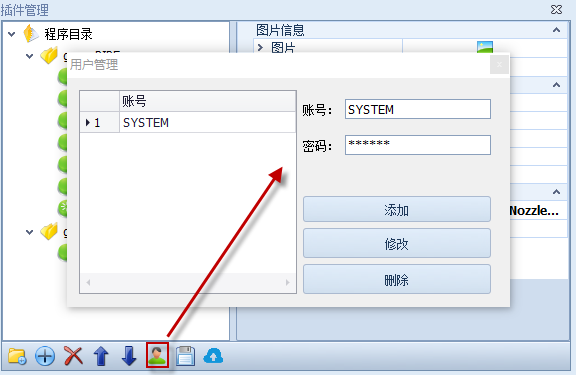
User Management
Click 【User Management】 to add, modify and delete administrator accounts in the user management interface. Note: this changes the local configuration. To set an administrator account for other users, push the changes to the server after configuring them; users can use it only after updating.