
New Floating License Manager Usage Tutorial
I. Floating License
1. Open the installed Floating License Manager and expand the QR code in the lower right corner
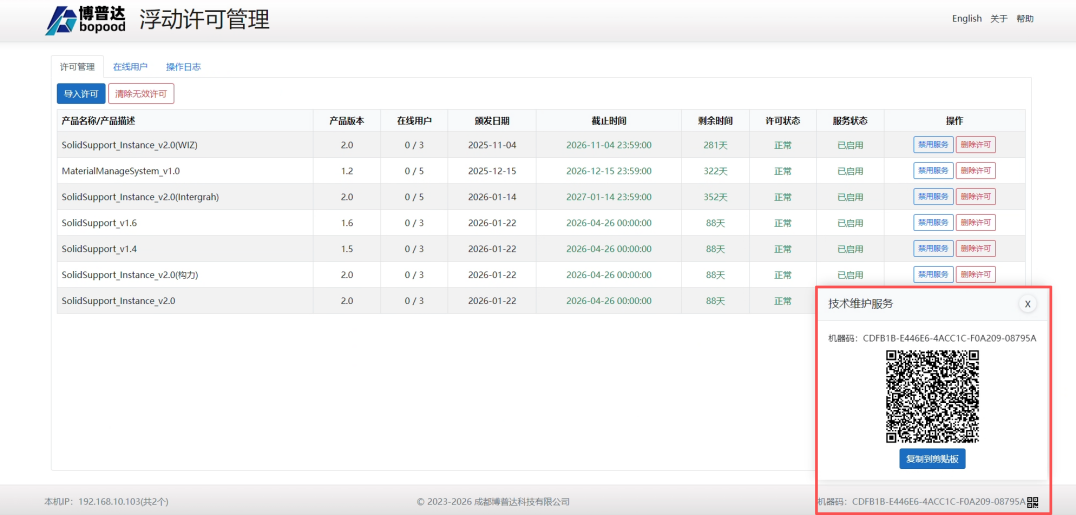
- Take a screenshot and send the QR code to Bopood to apply for a floating license

- The figure above shows the license file after approval
- Import the approved floating license on the floating server and the client separately

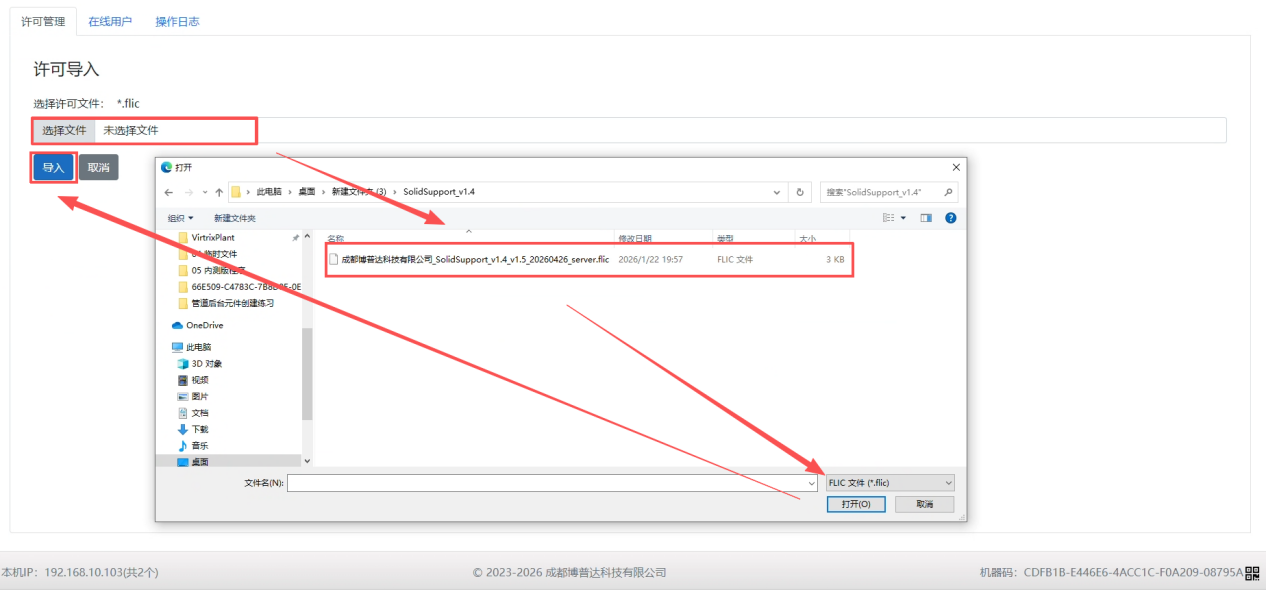
- Find the imported license and enable the service
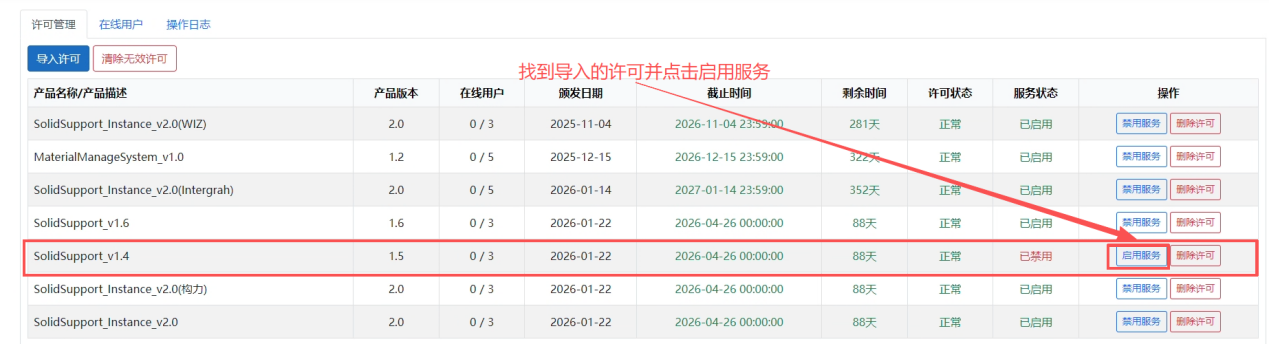
- The service is working when its status matches the figure below

- Import the client license (Hanger Design plug-in)
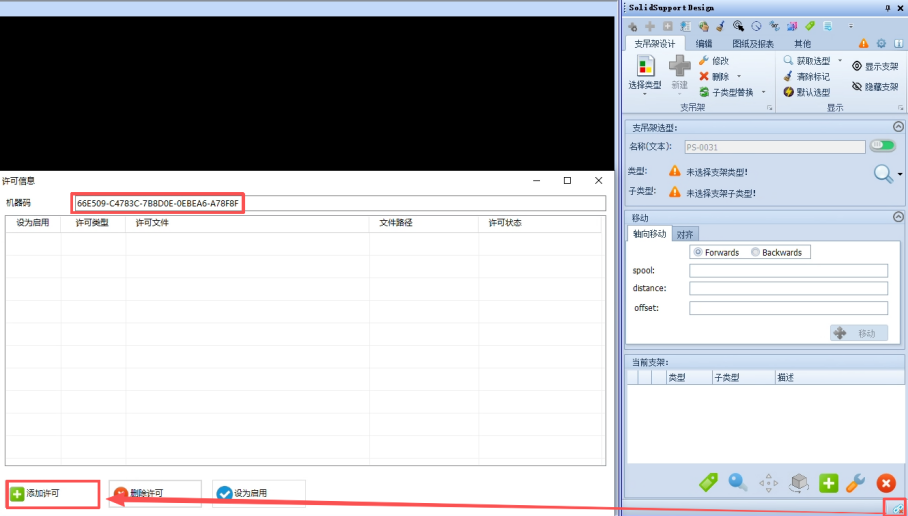
- Click the lower right corner of the Hanger Design interface to open the license import interface
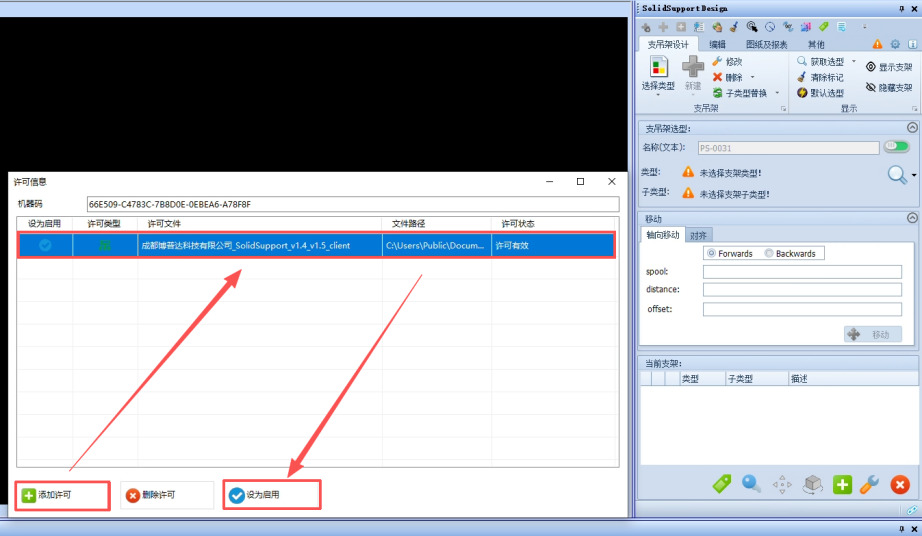
- Add a license, select it and set it to enabled to finish importing the client license
- The import succeeds when the license shows as valid
- Import the client license (other plug-ins)
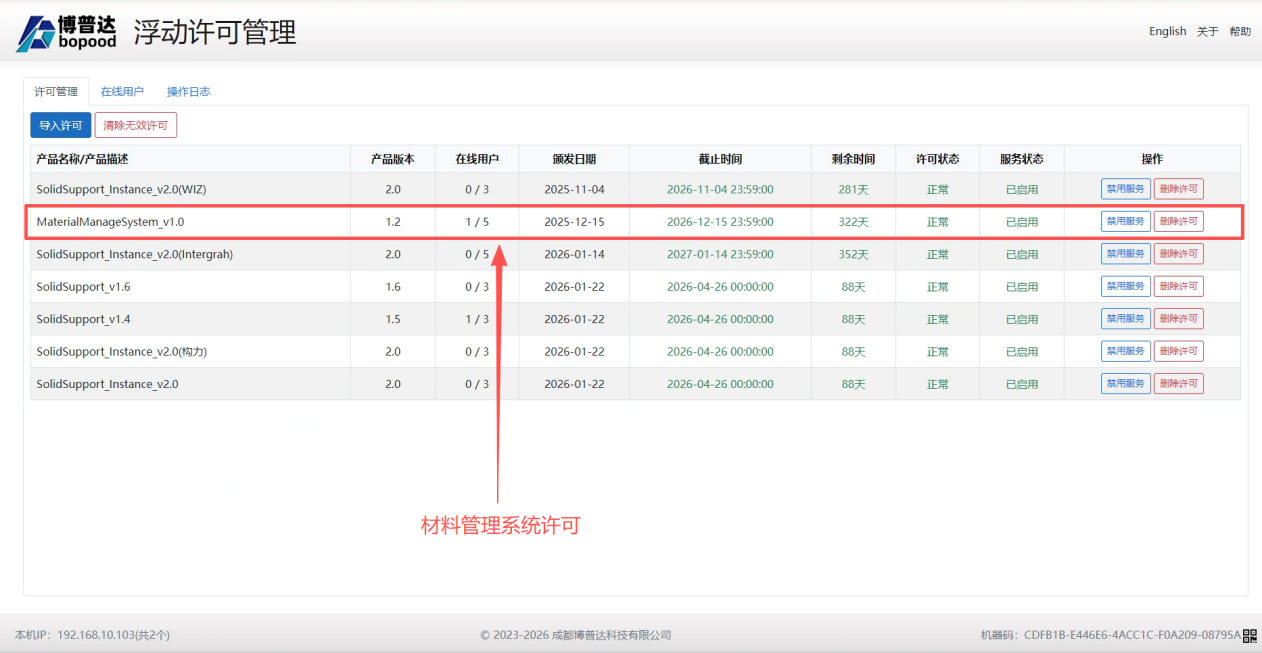
- Import the server license as described above (just make sure the imported license is the plug-in's floating license)
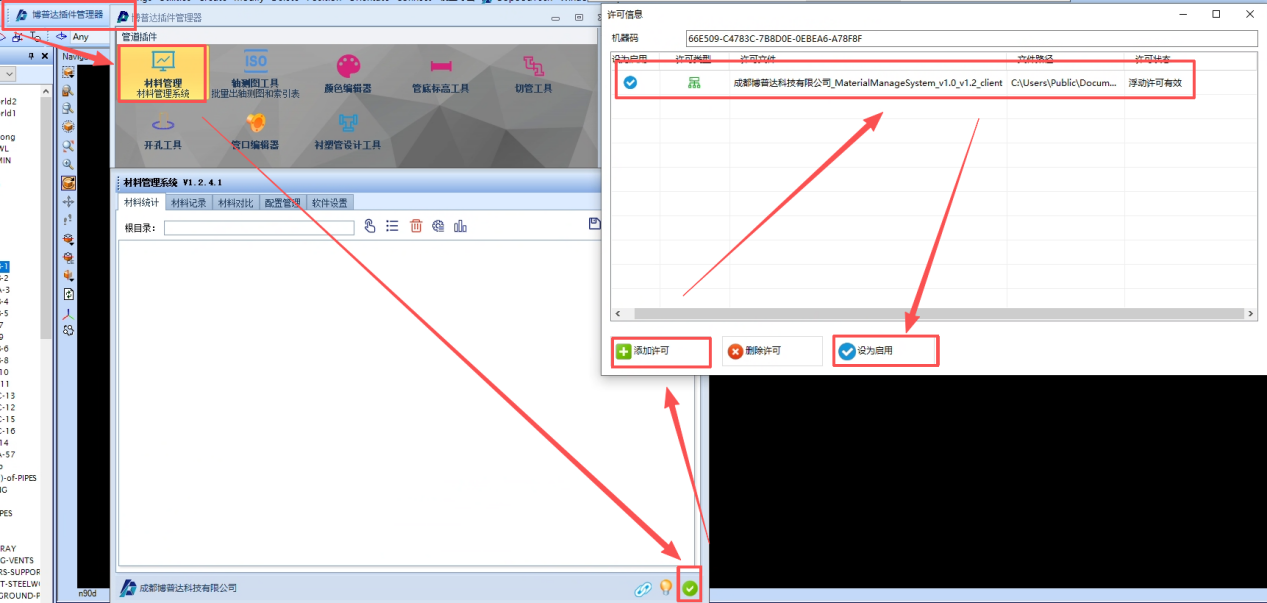
- Open the Bopood Plugin Manager, open the plug-in you want to use, and click the lower right corner of the expanded plug-in panel. The license import interface opens; add a license and enable it to finish placing the client license
Standalone License
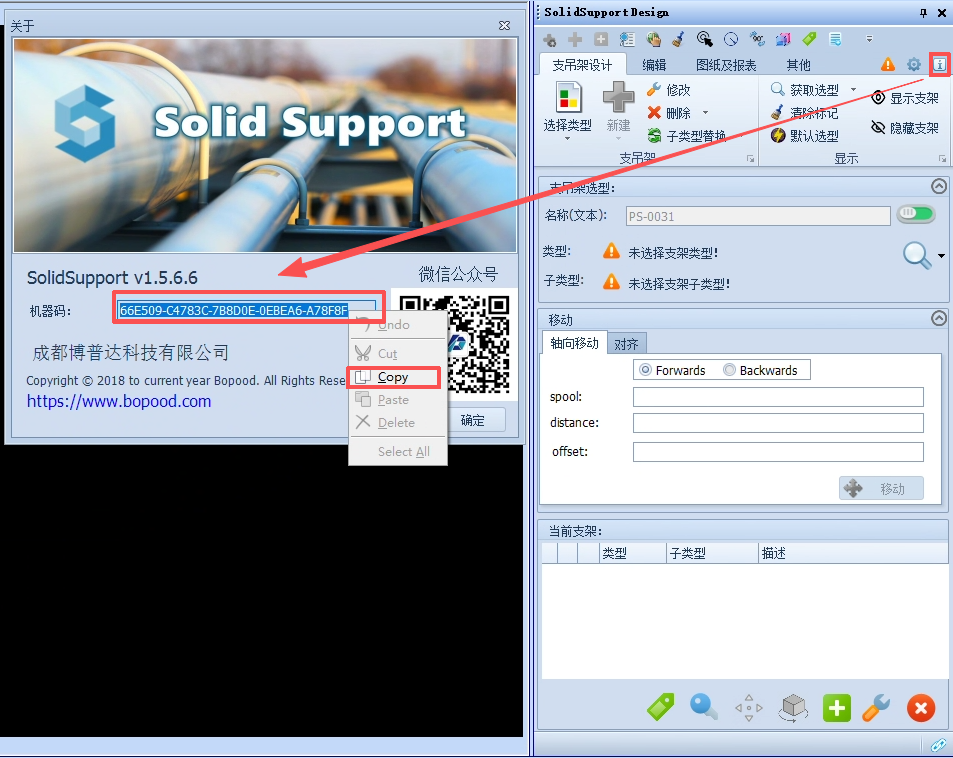
- Click the icon in the upper right corner of the Hanger Design interface to open its version information, copy the machine code shown there and send it to Bopood to apply for a standalone license (the machine code is the same for all plug-ins)
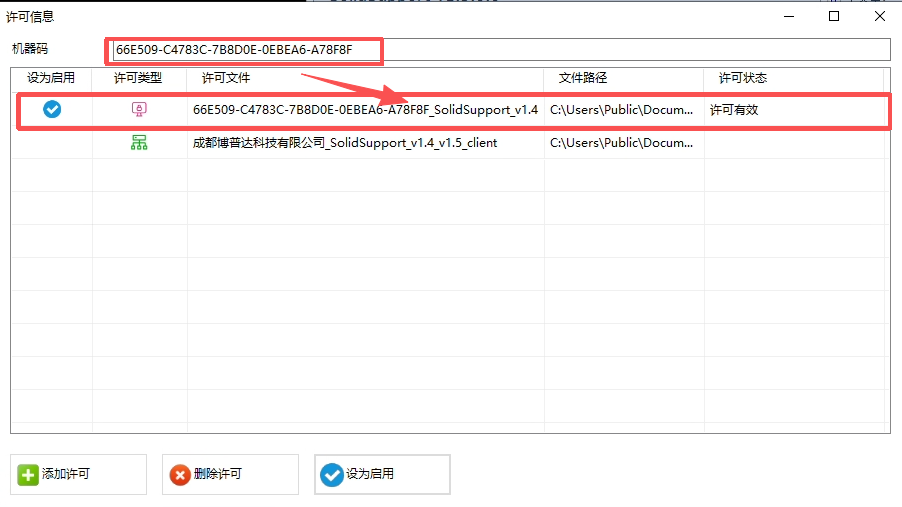
- A standalone license file name contains the machine code; compare it during import, because the license only works with a matching machine code. Add the license, select it and set it to enabled; the import succeeds when the license shows as valid